How to Make an AI Kissing Video From 2 Photos
The exact two-photo workflow for making people kiss with AI: one person per photo, matching light and angle, choosing the aspect, cost, and fixing failures.
AI Kiss TeamPublished Updated 6 min read
The request people type is some version of make two people kiss with AI, and the answer is genuinely simple: two photographs, one model, about a minute. What is not obvious is which two photographs, and that is where nearly all of the quality lives.
This is the whole workflow, in order, written for the two-photo case specifically.
How to make two people kiss with AI, step by step
Six steps, start to finish.
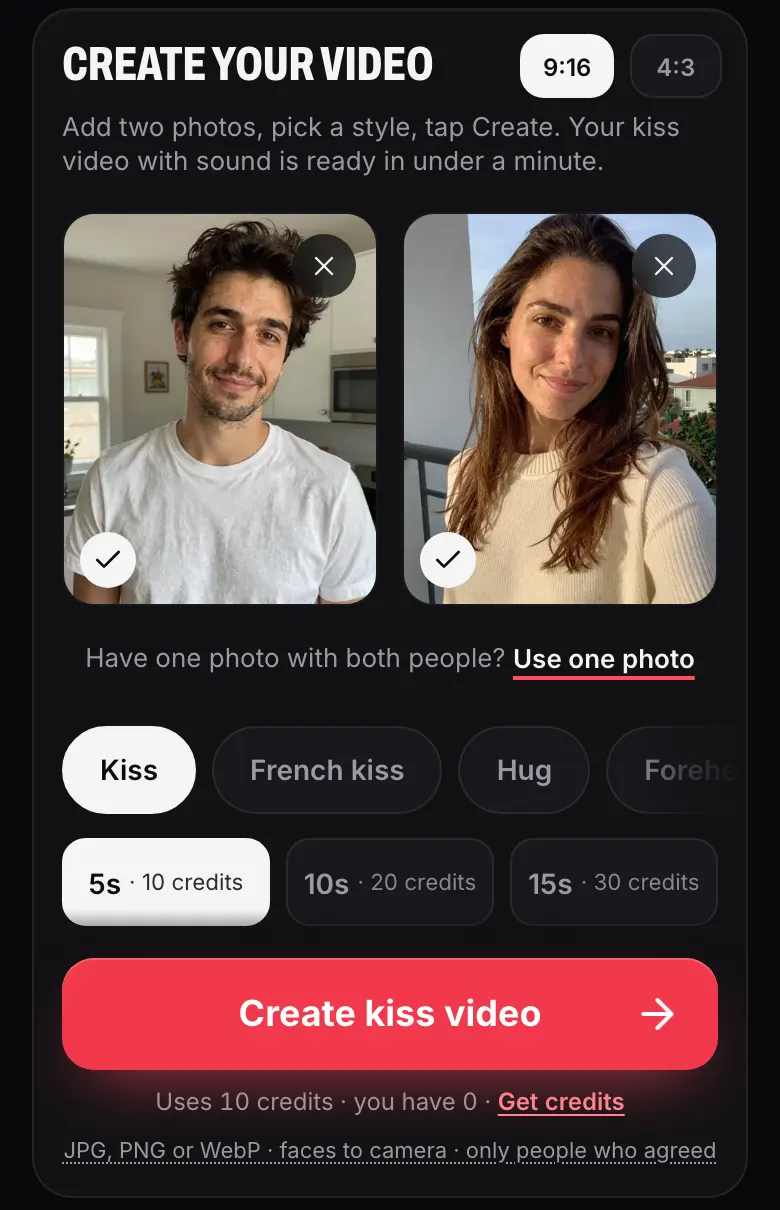
- Pick one photo per person. Head and shoulders, face large in frame, looking roughly at the camera.
- Check the pair together. Similar lighting, similar angle, similar distance from the lens.
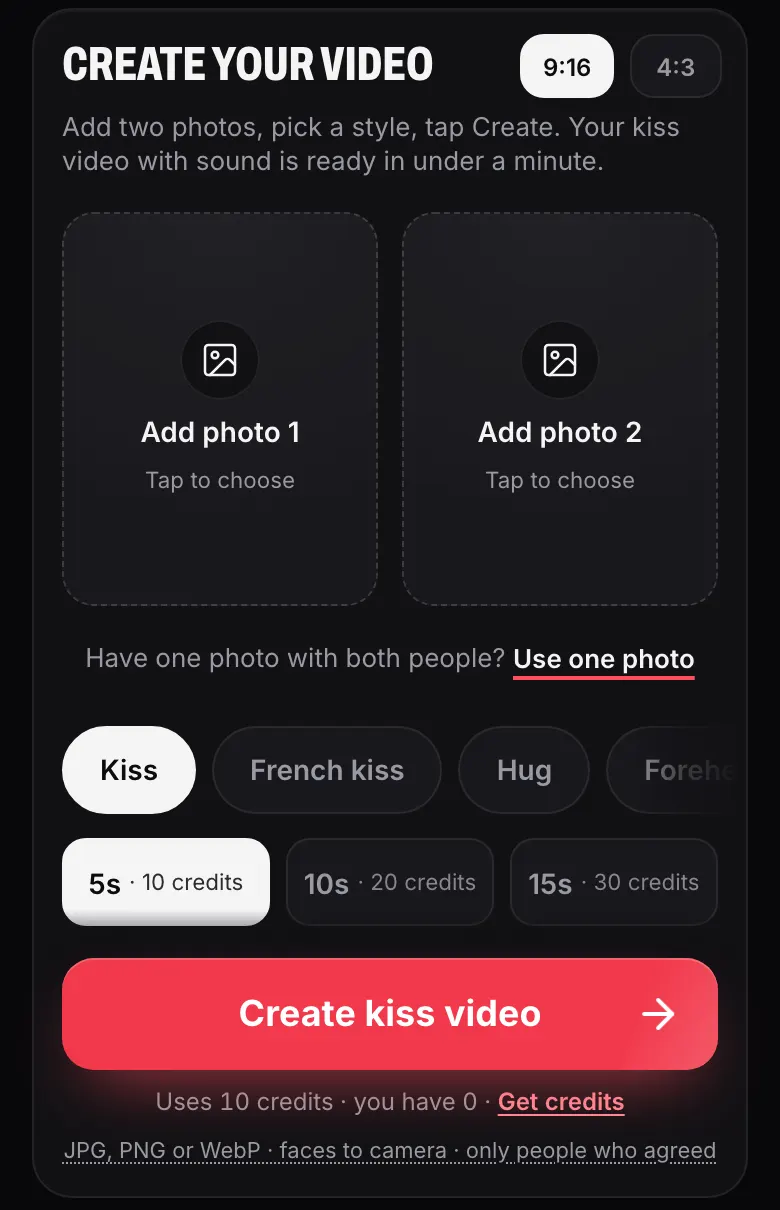
- Open the app. It runs in a browser on a phone or a laptop, with no account to create.
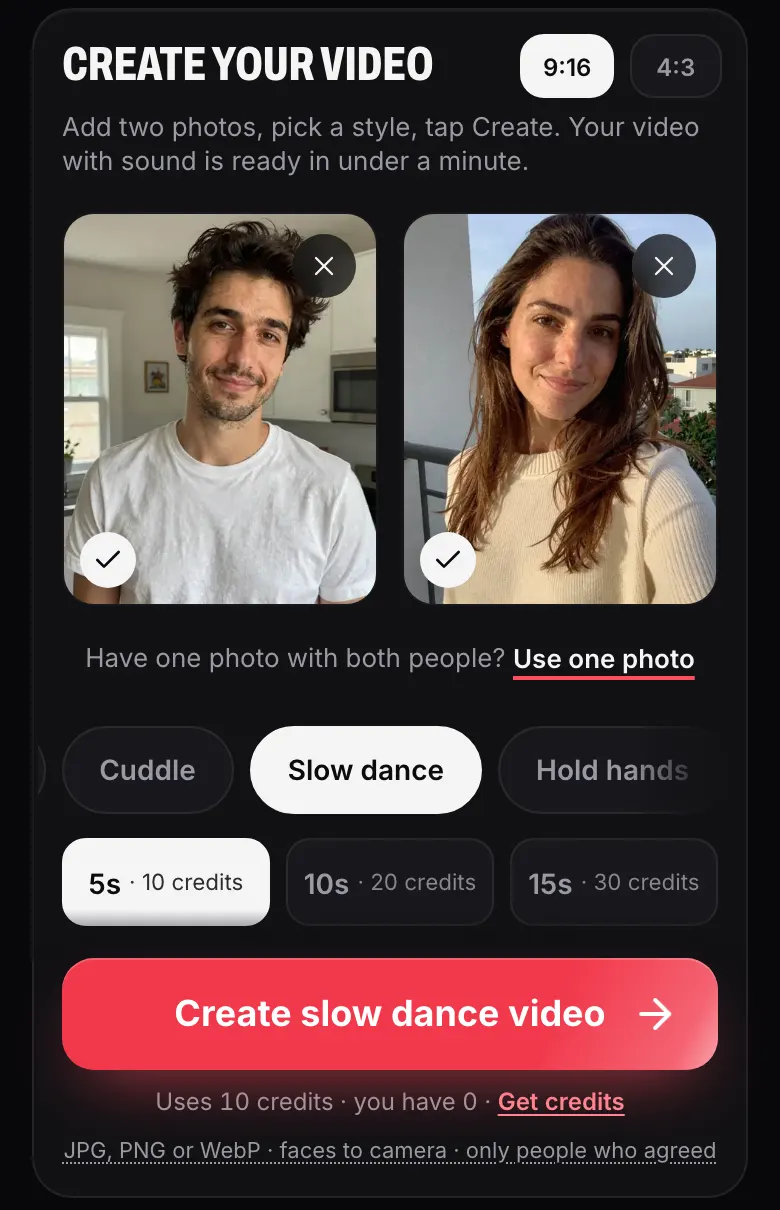
- Choose the two-photo mode and the style. Kiss, French kiss, Hug, or one of the other styles further along the row.
- Choose 4:3 or 9:16 depending on where the clip is going.
- Pay and wait. Usually under a minute, then an MP4 with sound, of the 5, 10 or 15 seconds you picked, lands in your gallery ready to download.
Here is what those steps look like in the app on a phone (real screenshots, taken on 8 October 2026):
That is the entire process. Everything below explains why each choice matters, because knowing the reason is what stops you wasting a generation.
Why it wants one person per photo
This is the rule people break most often, and the reason is worth understanding.
Your two photographs are not sent to the model separately. They are composed into one image first: a single canvas split down the middle, each photo fitted into its half. The model receives that one combined frame and treats everything in it as a single scene.
So if one of your uploads is a group shot with three faces in it, the model is looking at a scene containing four people and being asked to make two of them kiss. It has no way to know which two you meant. The usual outcomes are a blended face, a person quietly disappearing, or motion that goes somewhere strange.
Crop each photo down to the one person before uploading. It takes ten seconds in any phone gallery and it is the single highest-value thing you can do.
If you have one photo that already contains both people, use the single-photo mode instead. The lighting, camera and background already agree with each other, so it is often the better route when you have the option. The how it works page covers both modes side by side.
Matching light and angle
The combined frame is one image. If the two halves look like they came from different worlds, the result looks like a collage that moves.
Light is the big one. Warm evening sun next to cool indoor lighting produces a visible seam down the middle of the video. Aim for photos taken in similar conditions, ideally on the same day.
Angle is second. Two photos taken at roughly eye level blend well. One shot from below and one from above puts the faces on different planes, and the model has to invent a geometry that reconciles them.
Distance is third. If one face fills its half of the frame and the other is small and far away, the size mismatch reads as wrong even when the motion is good. Crop them to a similar scale.
If you are shooting fresh photos rather than searching a camera roll, take both in the same spot within a couple of minutes of each other, facing the same window. That one habit removes all three problems at once.
Choosing the aspect ratio first
You pick 4:3 or 9:16 before generating, and the video inherits that shape. It is not something you can change afterwards without cropping and losing quality.
Choose 9:16 for TikTok, Reels and Stories. It fills a phone screen with no bars and gives you vertical room for text.
Choose 4:3 when the clip sits next to photographs, goes into a wider edit, or is being sent to someone rather than posted. It is the more photographic frame.
Thirty seconds of thought here saves a re-generation later. If you genuinely do not know where the clip is going, 9:16 is the safer default, because a vertical video can be placed inside a wider frame far more gracefully than a 4:3 clip can be cropped into a vertical one.
What happens after you press upload
The steps run in this order.
Your images are resized in your own browser and composed into the combined frame. That single frame is uploaded. A job is queued with your chosen style as the instruction. A model generates the sequence, using the frame to keep the faces recognisable and the instruction to decide the motion. The finished MP4 goes into your gallery.
You do not have to keep the tab open. The job runs on our side and the gallery will show it as finished when you come back. Wait times vary with how busy the queue is, not with anything about your photographs.
What it costs, and what happens if it fails
One video is paid for once. There is no subscription, no sign-up and no email address required. Apple Pay, Google Pay and cards all work, and the details are on the pricing page.
If a generation fails, the credit returns to your balance automatically and a retry option appears on the item. You are not charged for a run that produced nothing, and you do not have to write to anyone to sort it out.
There are free AI kissing tools around, and they generally take payment in a different currency: an account, an email address, a watermark across your video, or a longer queue. The version of that trade offered here is no login and no subscription with a small per-video price, which is explained on the no-login page.
Fixing the five most common failures
Work through these before paying for another attempt.
- Faces merged, or somebody vanished. More than one face in one of the uploads. Crop to a single person.
- Barely any motion. Usually a profile shot. The model needs to see both eyes and most of the face to rotate a head convincingly.
- One person looks pasted in. Lighting mismatch between the two photos. Replace one of them.
- Identity drifts during the clip. The face was too small or too soft in the source. Use a closer, sharper photo.
- Detail smears at the moment of contact. Some softening there is normal in current models. A higher-resolution source reduces it, but it will not disappear entirely.
The complete list of what to look for before uploading is in the photo requirements guide, and if you want the process end to end rather than the two-photo case specifically, the full walkthrough covers it.
Before you upload someone else's face
Use photos of yourself and of people who have agreed to this. Not strangers, not public figures, and nobody under eighteen.
It is the rule here, and it is also what separates a clip someone is delighted to receive from one they would be upset to find. If you would hesitate to show the person the result, that is your answer.
Once you are clear on that, there is nothing else to arrange. Two photographs, a minute, and a clip of a moment that was never photographed. There are finished examples on the examples page if you want to see the range first.
Frequently asked questions
Can AI make two people kiss from two separate photos?
Do both photos need to be the same size?
Is there a free AI kissing video generator?
Why did my two photos produce a strange result?
Make your own AI kiss video
Upload two photos in your browser, pick a style and a length of 5, 10 or 15 seconds, and get an MP4 with sound back in under a minute. No sign-up, and a failed generation is credited back automatically.
Related guides
5 min read
AI Kiss Photo Requirements: Why Generations Fail
Face size, angle, lighting, resolution, glasses and group shots decide whether an AI kiss video works. What to look for, why it matters, and a checklist.
6 min read
AI Kiss Videos on Instagram: Best Practices
Where an AI kiss video belongs on Instagram, why 9:16 wins, how to write the caption, how to handle AI disclosure and consent, and the mistakes to avoid.
6 min read
AI Kiss Privacy and Safety: What Happens to Your Photos
Where your uploads go, what the Privacy Policy says about keeping them, how to ask for deletion, and the consent rules that decide whose face you may animate.